


Choosing which emails you get
Opening Settings
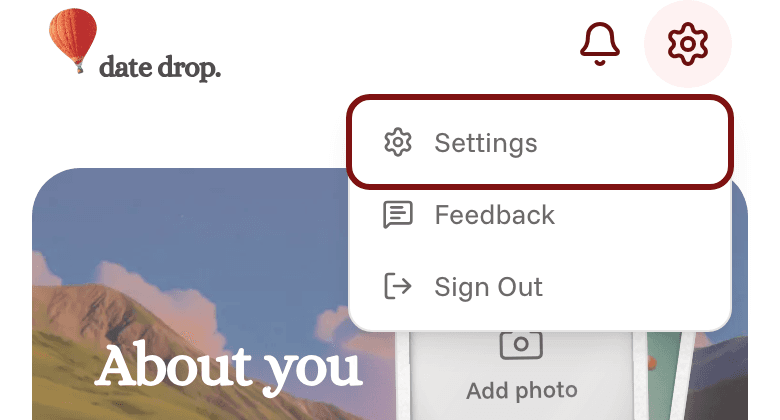
- On your phone: tap the Profile icon at the bottom of the screen. Then tap the gear icon in the top right corner, and tap Settings.
- On a computer: click your initials or photo in the top right corner, then click Settings.
Turning emails on or off
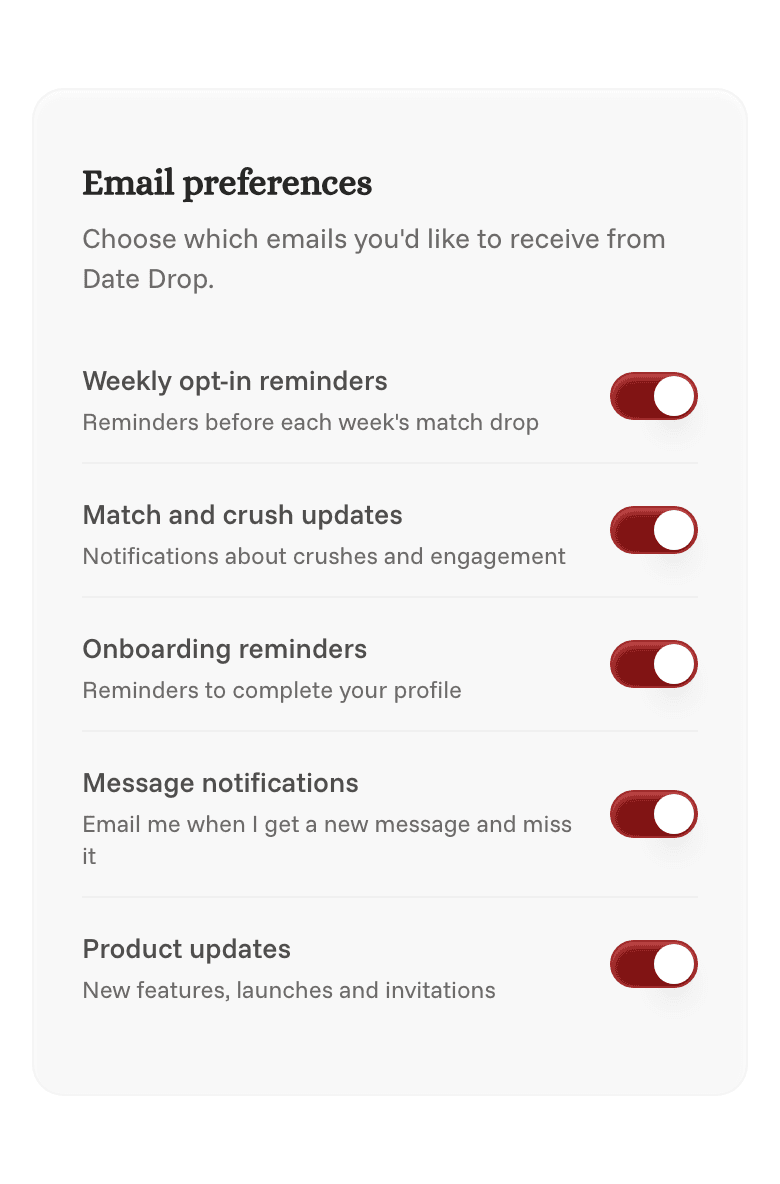
Scroll to Email preferences. Each kind of email has its own switch:
- Weekly opt-in reminders: reminds you before each drop to opt in if you're not already
- Match and crush updates: lets you know when matches drop or if someone has a crush on you
- Onboarding reminders: reminds you to complete onboarding if you had to take a pause in the process
- Message notifications: when you get a message you haven't read
- Product updates: new features!
Tap a switch to turn that email on or off. Your change saves right away.
Higher up on the same page, Notifications lets you choose how we reach you about things like new matches and date plans: by email, text, or browser notification (Push).
You can also unsubscribe using the link at the bottom of any email we send.