


Editing your profile
Opening your profile
- On your phone: tap the Profile icon in the bar at the bottom of the screen.
- On a computer: click your initials or photo in the top right corner, then click Profile.
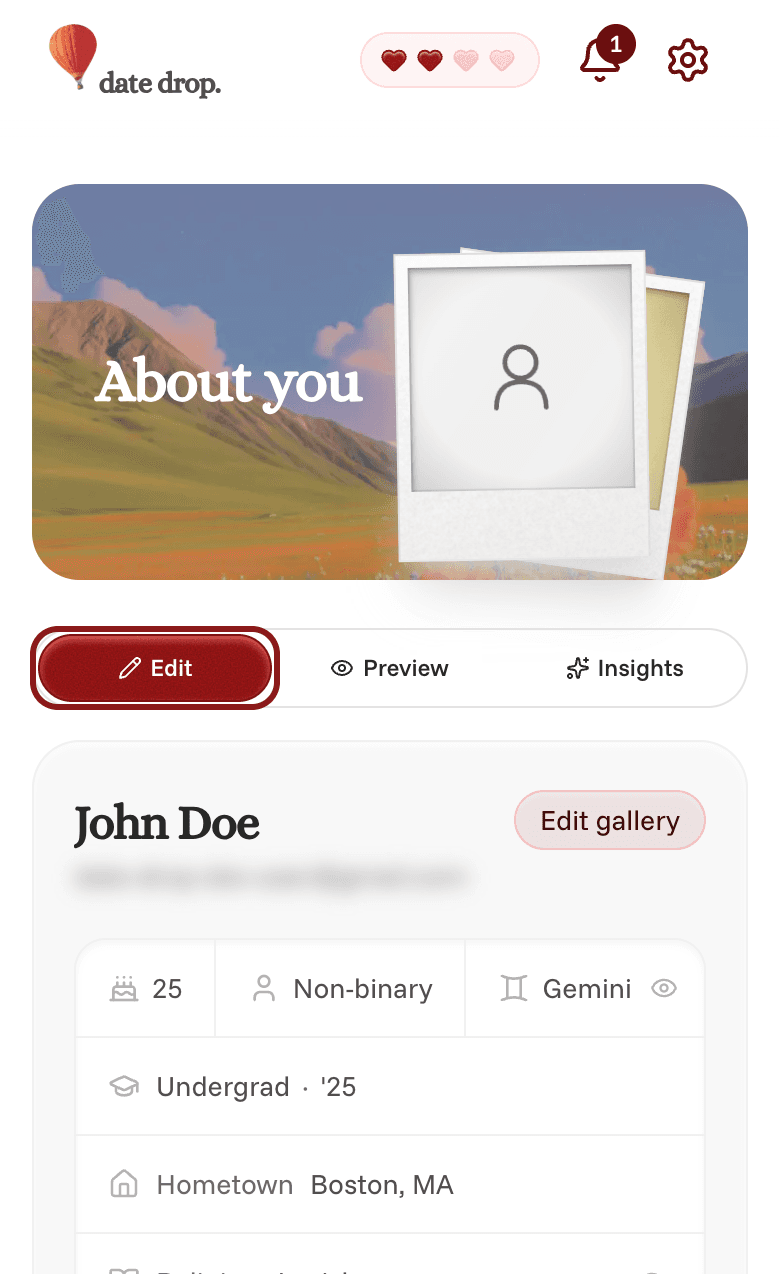
Make sure the Edit tab is selected. It's next to Preview and Insights, under "About you" at the top of the page.
Changing your details
Your profile card shows your name, photos, and details like your major, hometown, and favorites. At most schools, this is what your match sees.
- Tap the detail you want to change.
- Make your change. Some details open a small box with a Save button. Others save as soon as you pick an option or tap away.
Don't want your match to see a certain detail? Next to some options is an eye icon. Tap it to show or hide that detail from your match.
If you see Complete profile near the top of the page, tap it to fill in any details you haven't added yet.
Changing your matching answers
Further down the page is Matching questions. These are the answers we use to find your match, and they aren't shown on your profile.
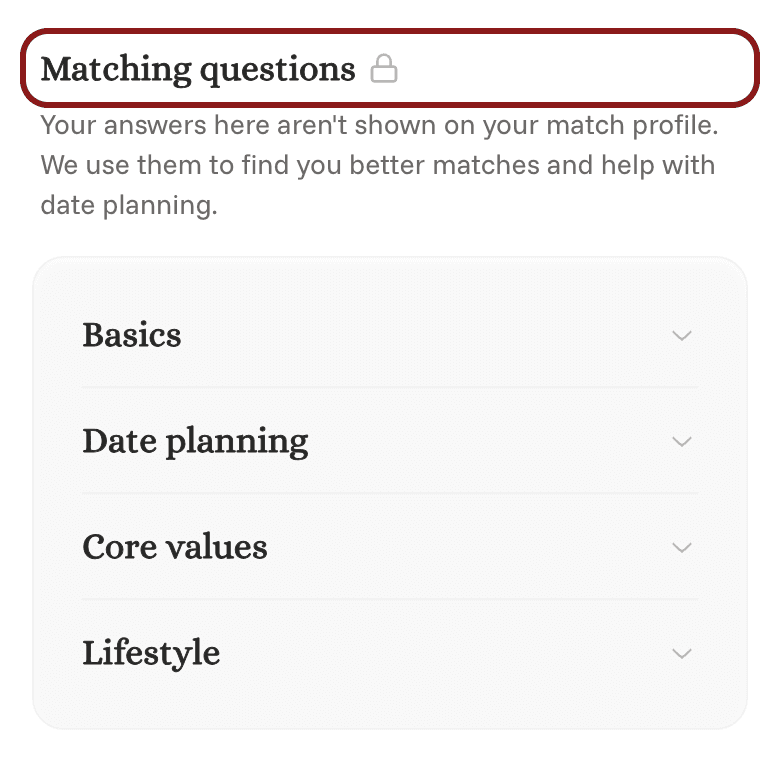
- Tap a section, like Basics or Core values, to open it.
- Change any answers you like.
- Tap Save Changes at the bottom of the screen. These answers don't save until you do.
Changes apply to your next drop.
Get better matches
Above Matching questions, you may see a section called Get better matches. It lists anything you haven't done yet that helps us find your match, like teaching us your type. Once you've done everything there, the section disappears.