


Adding and changing photos
You need at least one photo on your profile to join a drop. You can add up to 24. Clear, recent photos where your face is easy to see work best.
Adding photos
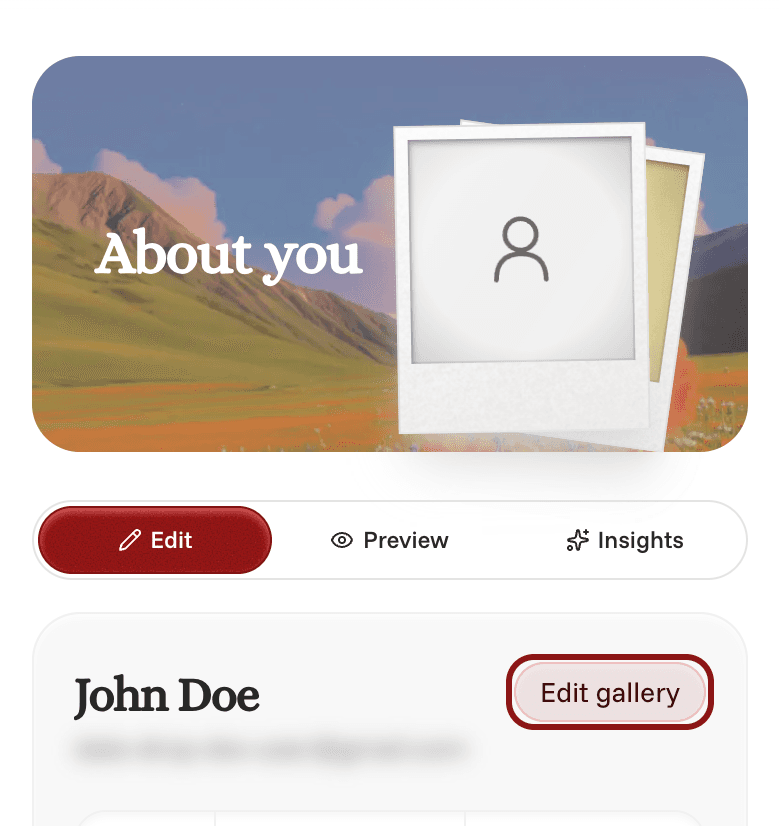
- Open your profile. On your phone, tap the Profile icon at the bottom of the screen. On a computer, click your initials or photo in the top right, then Profile.
- Tap Edit gallery on your profile card. If you don't have any photos yet, you can also tap Add photo in the "About you" banner.
- Tap Add, then Upload photos, and choose one or more photos from your device.
- Tap Done when you're finished.
Changing your photos
Open Edit gallery, then:
- To change the order, press and hold a photo, then drag it to a new spot. Your first photo is your main photo. It's the one people see first.
- To replace a photo, tap it and choose Replace photo.
- To crop a photo or add a caption, tap it and choose Edit photo. Tap Save when you're done.
- To remove a photo, tap it and choose Remove photo. You can't remove your main photo, but you can replace it.
You need a photo of your own on your profile before you can see your match's photos.