


Fixing microphone access
When you choose to talk instead of type, your browser asks if Date Drop can use your microphone. If you said no, or your browser blocked it, you'll see a message that your microphone is blocked. Here's how to allow it.
Chrome
- Click the icon at the far left of the address bar, just before the web address. It looks like a lock or two small sliders.
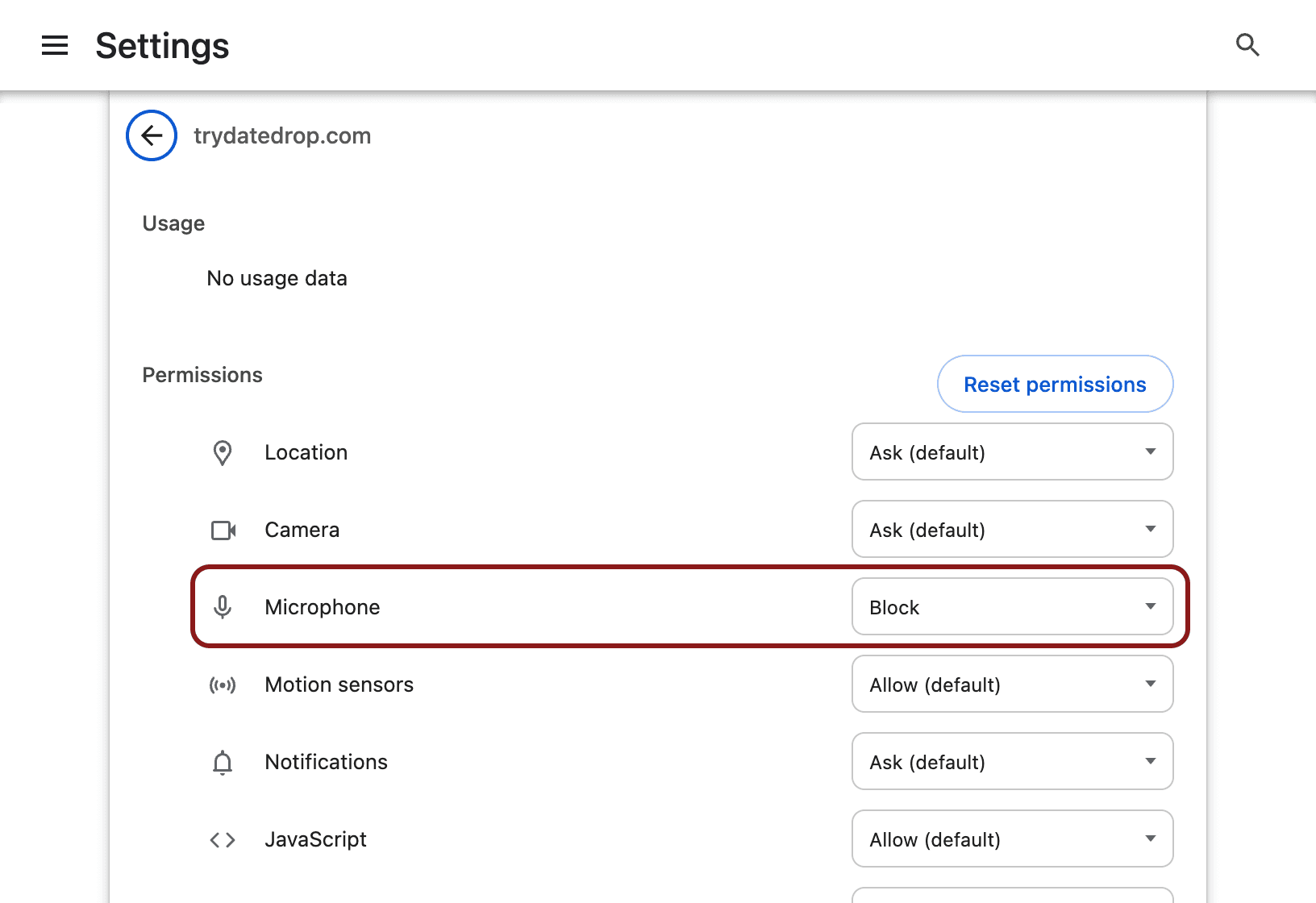
- Click Site settings. A new tab opens with Date Drop's permissions.
- Find Microphone and change it from Block to Allow.
- Go back to the Date Drop tab and refresh the page.
Safari on a Mac
- Keep Date Drop open in a tab, so it shows up in the list.
- In the menu bar, click Safari, then Settings.
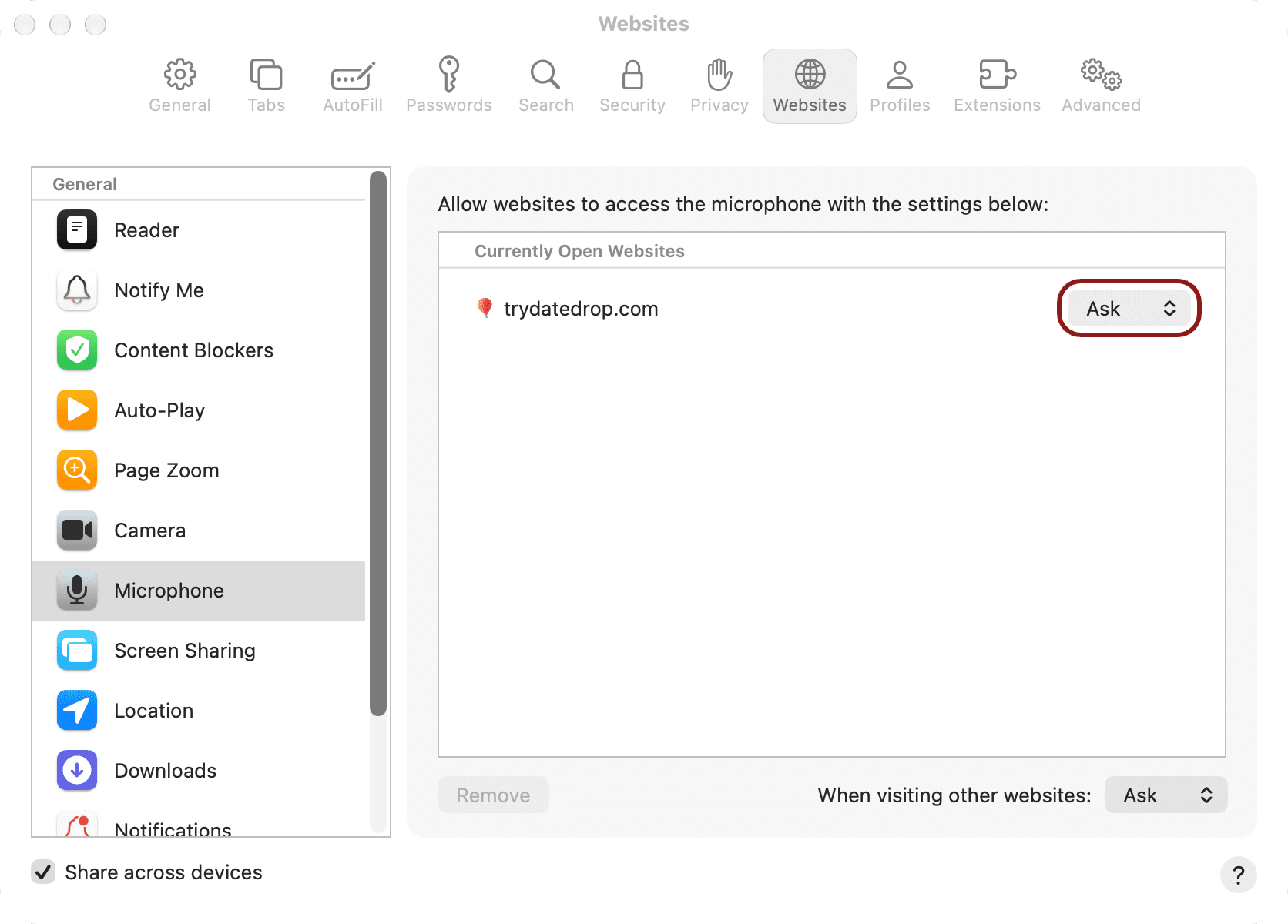
- Click Websites, then Microphone in the list on the left.
- Find Date Drop (trydatedrop.com) and change it to Allow.
- Go back to the Date Drop tab and refresh the page.
Safari on an iPhone
- Tap the aA button in the address bar.
- Tap Website Settings.
- Set Microphone to Allow.
- Refresh the page.
Firefox
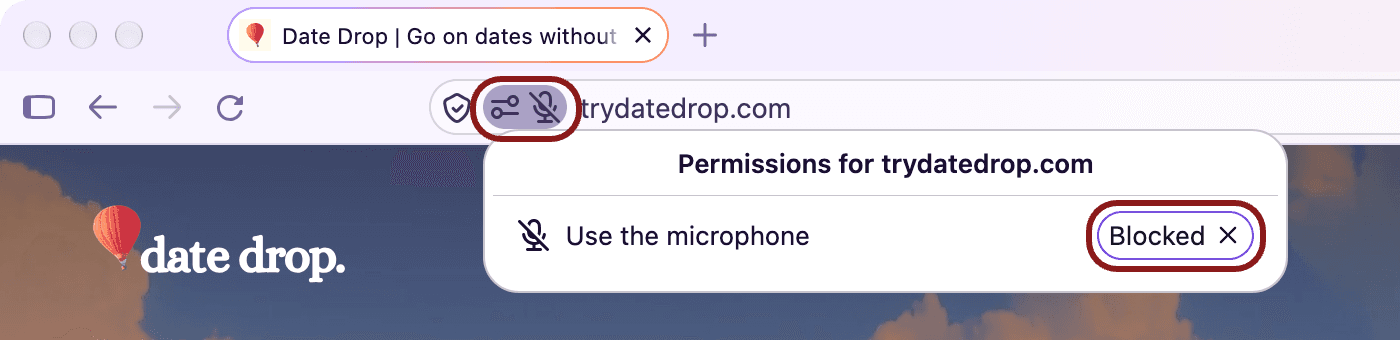
- Click the icon with the crossed-out microphone at the left of the address bar, next to the shield.
- Next to Use the microphone, click the × beside Blocked.
- Refresh the page.
Still not working?
Make sure your microphone is connected and no other app is using it. You can always type your answers instead. It works just as well.