


Getting browser notifications
Date Drop doesn't have an app in the App Store or Google Play yet. It runs in your web browser, so notifications come from your browser instead. They pop up on your phone or computer like any other alert, even when Date Drop isn't open.
Notifications are turned on one device at a time. If you use Date Drop on your phone and your laptop, turn them on in both.
Turning them on
-
Open Date Drop in your browser and go to Settings. On your phone, tap the Profile icon at the bottom of the screen, then the gear icon in the top right, then Settings. On a computer, click your initials or photo in the top right, then Settings.
-
Go to Notifications.
-
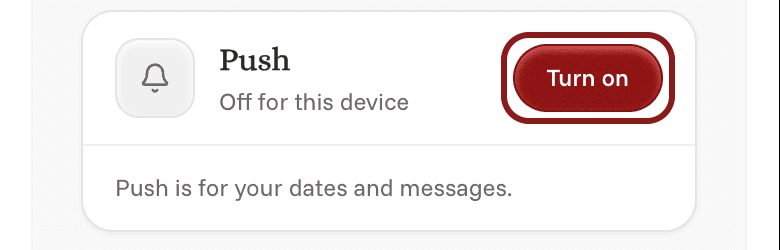
Next to Push, tap Turn on.
-
When your browser asks if Date Drop can send notifications, tap Allow.
Settings will say "On for this device" once it's working.
On an iPhone
iPhones only allow browser notifications from sites you've added to your home screen. This isn't an app download. It puts a Date Drop icon on your home screen that opens the website.
- Open Date Drop in Safari.
- Tap the Share button.
- Tap Add to Home Screen.
- Open Date Drop from the new icon on your home screen, then follow the steps above.
If notifications are blocked
If Settings says "Notifications are blocked in your browser", you said no when your browser asked. Settings also shows how to turn them back on for the browser you're using.
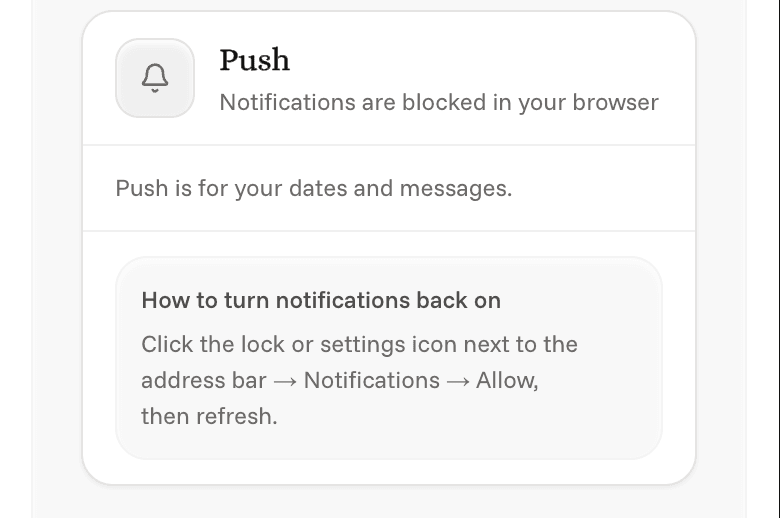
Here's how to allow them again:
- iPhone: open your phone's Settings, tap Notifications, then Date Drop, and turn on Allow Notifications.
- Android: in Chrome, tap the icon next to the address bar, tap Notifications, and choose Allow.
- Computer: click the icon at the far left of the address bar, find Notifications, choose Allow, and refresh the page.
If Settings says "This browser can't get notifications", try a different browser, like Chrome or Safari. You'll still get matches and updates by email and text.