


Joining or skipping a drop
You only get a match if you're in the drop. Your Home page always tells you whether you're in.
If you're new
Once you've finished setting up your account, your Home page shows any steps you still have left. See Finishing onboarding.
Joining the next drop
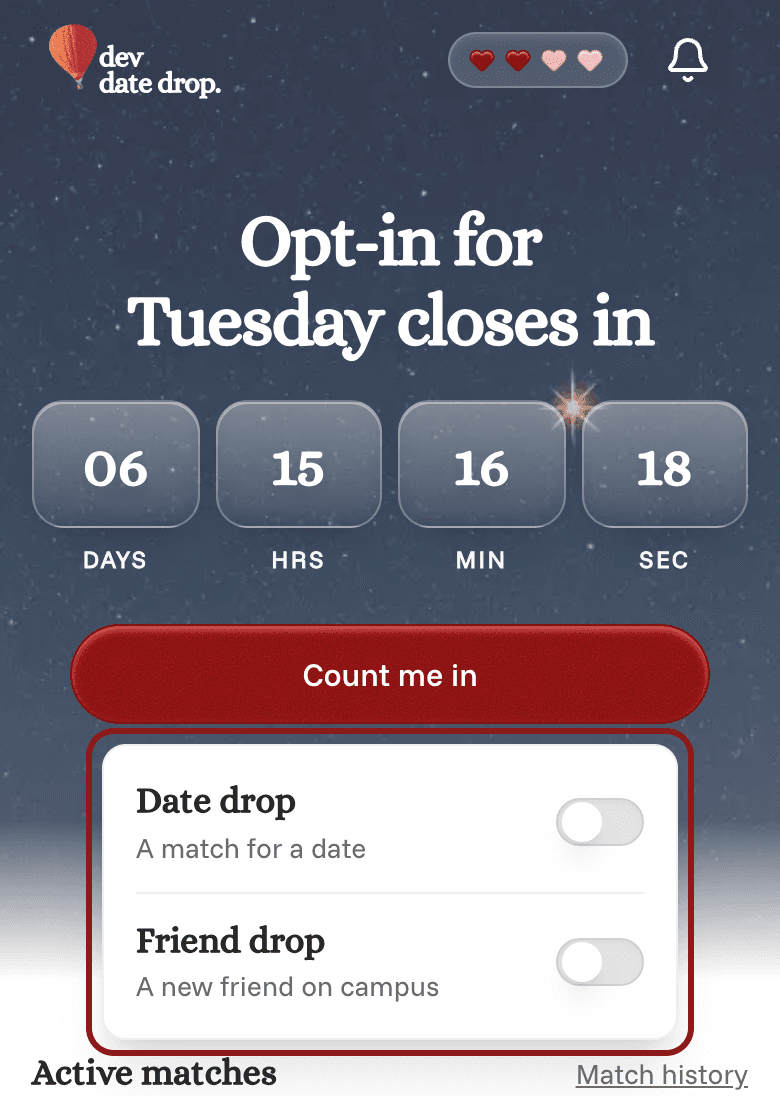
If you're not in yet, your Home page says Opt-in for the day of the next drop, with a countdown to when joining closes.
- Go to your Home page. On your phone, tap the Home icon at the bottom of the screen. On a computer, click Home at the top of the page.
- Tap Count me in.
- At most schools, a small box opens with a switch for Date drop (a match for a date) and Friend drop (a new friend on campus). Turn on the ones you want. At schools without friend drops, tapping Count me in is all you need to do.
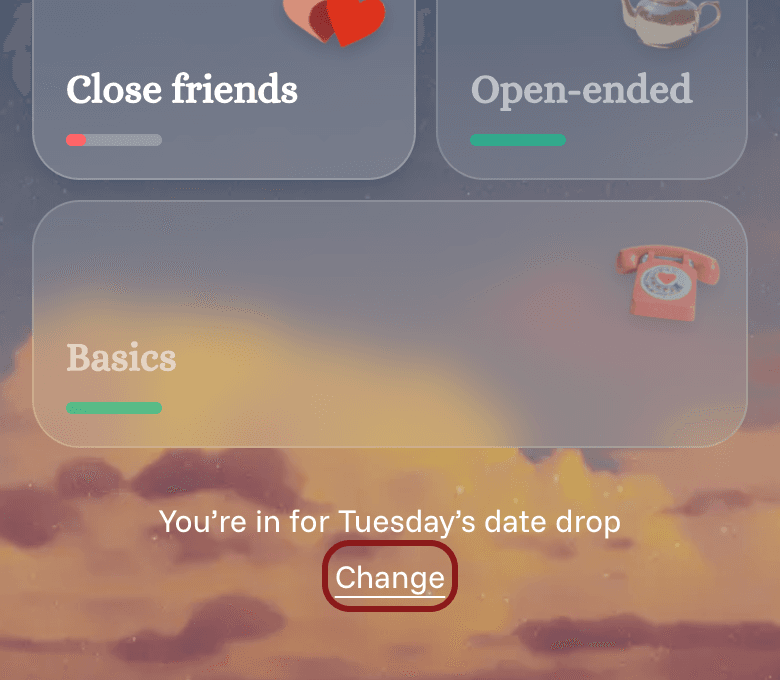
Once you're in, your Home page says something like "You're in for Thursday's date drop".
Changing or skipping a drop
-
Go to your Home page.
-
Under "You're in for…", tap Change.
-
Turn Date drop or Friend drop on or off.
-
Tap anywhere outside the box to close it. Your choice saves when the box closes.
Turn both off to skip the next drop. Your Home page will go back to showing Count me in, so you can rejoin any time before joining closes.
At most schools, once you're in, you stay in for every drop until you change it.
You can't join or leave in the last hour before a drop, so make your choice before then.